
Have you ever wished you could see your surroundings from high above, just like a bird soaring in the sky? Getting a bird’s eye view on Google Maps using your Android device can give you that exact perspective.
It’s not only fascinating but also incredibly useful for planning trips, exploring new places, or simply satisfying your curiosity. In this guide, you’ll learn simple steps to switch your Google Maps to a stunning aerial view. By the end, you’ll be able to zoom out and see the bigger picture like never before.
Ready to transform your map experience? Let’s dive in!
Accessing Bird’s Eye View
Bird’s Eye View in Google Maps shows an angled, detailed look of places. It helps you see buildings and streets clearly.
You can use Bird’s Eye View on your Android phone using the Google Maps app. Follow these simple steps to find it.
Launching Google Maps App
Open the Google Maps app on your Android device. Make sure your internet connection is active for best results.
If you do not have the app, download it from the Google Play Store and sign in with your Google account.
Enabling Satellite Mode
Tap the layers button in the top right corner of the screen. This button looks like stacked squares.
Select the “Satellite” option from the list. This changes the map view to real images from satellites.
- Tap layers button
- Choose “Satellite”
- View real images of the area
Switching To 3d View
Use two fingers on the screen to tilt the map. Move your fingers up to see buildings in 3D angle.
You can also zoom in by pinching out. This gives a clearer Bird’s Eye View of the location.
- Place two fingers on the screen
- Slide fingers upward to tilt
- Pinch out to zoom in
- Enjoy the 3D Bird’s Eye View
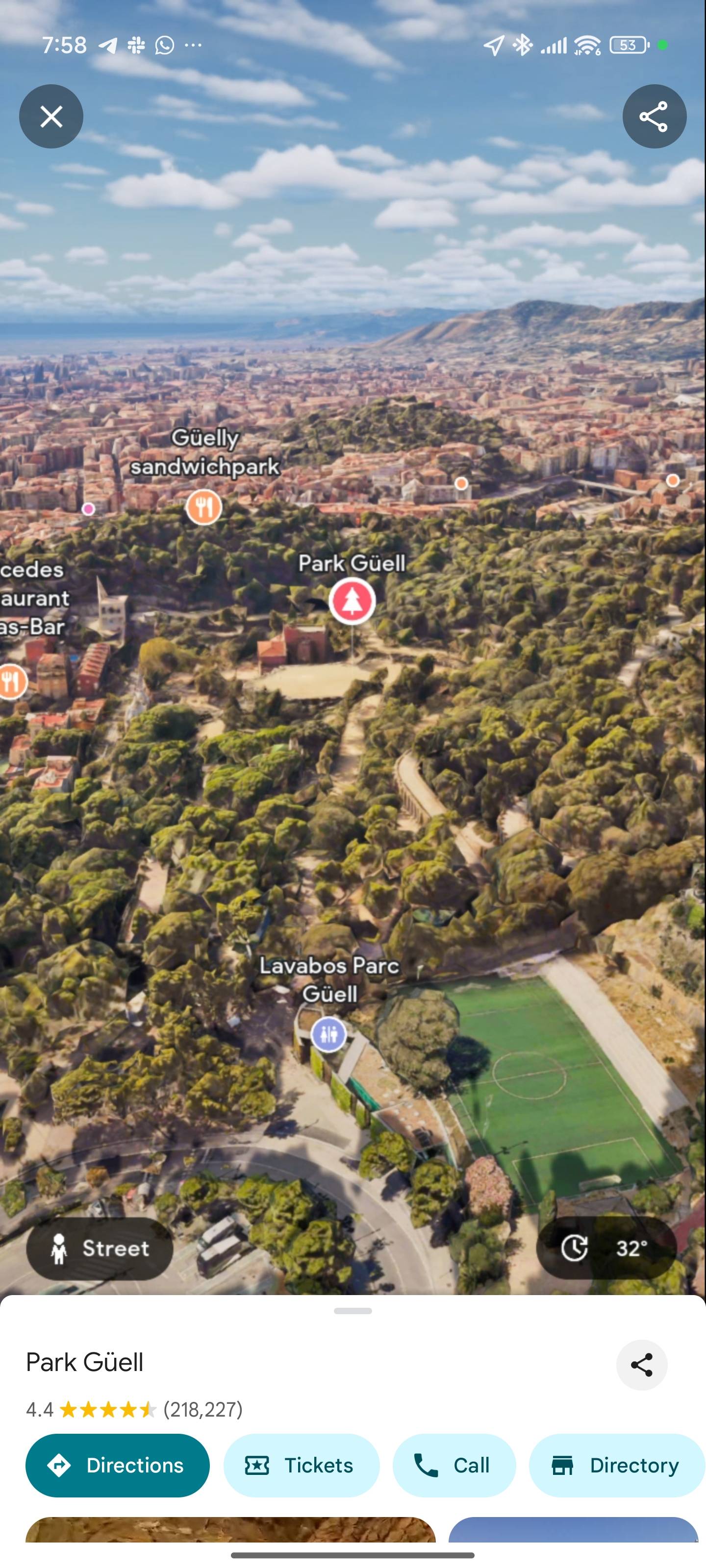
Credit: www.androidpolice.com
Navigating The Map
Using Google Maps on Android lets you explore places easily. You can move around the map and see details clearly.
This guide shows simple ways to zoom, rotate, and change the map view angle.
Zooming In And Out
Zooming helps you see more details or a bigger area on the map. You can zoom in or out using touch gestures.
- Pinch two fingers apart to zoom in.
- Pinch two fingers together to zoom out.
- Double-tap the screen to zoom in quickly.
- Use the plus (+) and minus (-) buttons on the screen for zooming.
Rotating The Map
Rotating the map changes the direction you view. This helps to see places from different angles.
- Place two fingers on the screen.
- Turn your fingers clockwise or counterclockwise to rotate.
- Tap the compass icon to reset the map to north-up view.
Adjusting The Angle
You can tilt the map to see buildings and landscapes in 3D. This gives a better view of the area.
| Gesture | Effect |
|---|---|
| Swipe up or down with two fingers | Change the map angle |
| Tap the 3D button (if available) | Switch between flat and tilted views |
| Reset angle | Tap the compass or recenter button |
Using Street View For Details
Bird’s Eye View on Google Maps helps you see places from above. Using Street View adds street-level details. This way, you can explore locations closely on your Android device.
Street View shows real images of streets and surroundings. It helps you understand places better than just a map view.
Activating Street View
Open Google Maps on your Android phone. Find the place you want to view in detail. Tap and hold on a location until a red pin appears.
Next, tap the Street View thumbnail at the bottom. This opens a 360-degree photo of the street. You can move around by swiping the screen.
- Open Google Maps app
- Tap and hold a spot to drop a pin
- Tap the Street View image at the bottom
- Swipe to look around the street
Exploring Nearby Locations
While in Street View, you can move to nearby streets. Use the arrows on the screen to go forward or backward. This lets you explore the area around your location.
You can also zoom in and out by pinching the screen. This helps you see more details or a wider view of the street.
- Use arrows to move along streets
- Pinch to zoom in or out
- Drag to change the view angle
- Explore shops, buildings, and landmarks
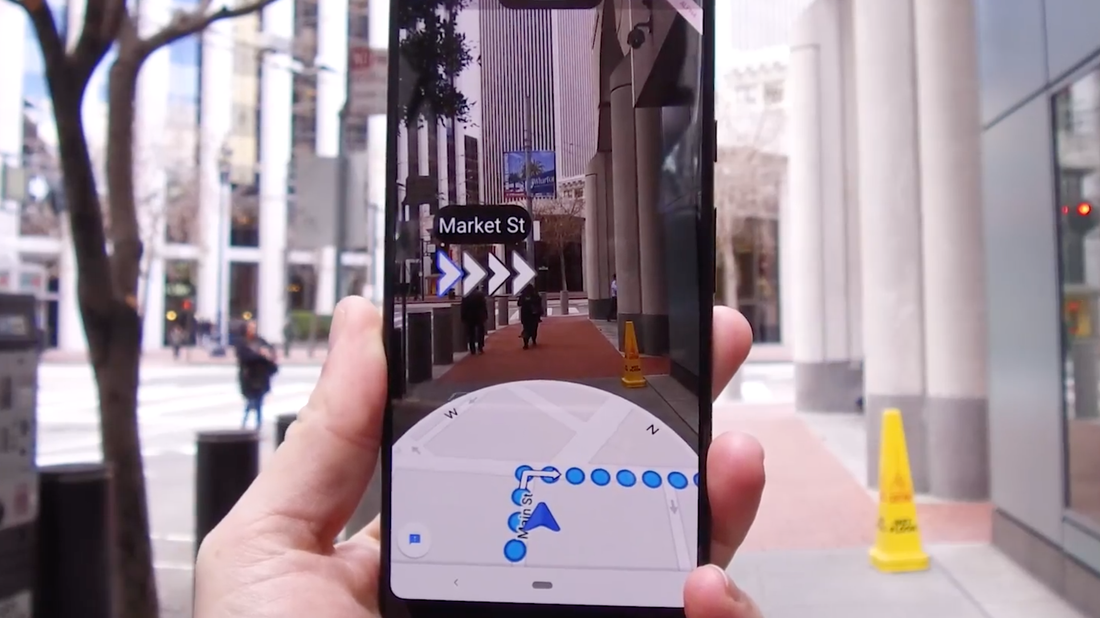
Credit: www.androidpolice.com
Optimizing Settings For Better Experience
Using Birds Eye View on Google Maps for Android can give you a detailed look at places. Adjusting settings helps you see clearer images and saves data.
Small changes in the app settings make your viewing smoother and faster. Let’s explore how to improve your map experience.
Enabling High-quality Imagery
Google Maps shows clearer images if you turn on high-quality options. This setting loads better pictures for Birds Eye View. It makes it easier to see details on buildings and streets.
To enable high-quality imagery, open Google Maps and go to settings. Look for the option that controls image quality or data usage. Turn on the high-quality images option to see sharper views.
- Open Google Maps app on your Android device
- Tap on your profile icon or menu
- Select “Settings” and find “Map display”
- Enable “High-quality images” or similar option
- Restart the app for changes to take effect
Managing Data Usage
High-quality images use more mobile data. If you have a limited data plan, control how much data Google Maps uses. This keeps your data safe while using Birds Eye View.
You can adjust settings to limit data use or switch to Wi-Fi only. This stops the app from using too much mobile data when loading detailed images.
- Open Google Maps and go to “Settings”
- Find “Data usage” or “Offline maps” section
- Turn on “Wi-Fi only” to avoid mobile data use
- Download offline maps for areas you visit often
- Clear cache regularly to save space and data
Troubleshooting Common Issues
Using Birds Eye View on Google Maps for Android can sometimes be tricky. You may face problems with loading or display. This guide helps you solve these common issues.
Follow easy steps to fix loading problems and resolve display errors. These tips will improve your app experience.
Fixing Loading Problems
Loading problems happen when the Birds Eye View does not appear or is very slow. This can be caused by poor internet or app errors.
Check your internet connection. Use Wi-Fi or a strong mobile network.
Restart the Google Maps app to refresh the data.
Clear the app cache from your Android settings to remove old files.
Update Google Maps to the latest version for better performance.
Restart your phone if the problem continues.
Resolving Display Errors
Display errors include blurry images, wrong angles, or missing Birds Eye View options. These issues can confuse users.
| Issue | Cause | Fix |
|---|---|---|
| Blurry images | Slow internet or low app settings | Switch to a faster connection and check map quality settings |
| Wrong angles | App glitch or outdated version | Update app and restart device |
| Missing Birds Eye View | Not available in some locations | Try another nearby area or use satellite view |
Tips For Effective Bird’s Eye Viewing
Bird’s Eye View on Google Maps lets you see places from an angled, high view. This view helps you understand the layout of an area better.
Using Bird’s Eye View on Android can be simple with a few helpful tips. These tips make exploring maps easier and faster.
Using Landmarks For Orientation
Landmarks are easy to spot in Bird’s Eye View. They help you know where you are and find your way.
Look for tall buildings, parks, or rivers. These landmarks guide your direction and make map reading simple.
- Find a tall building to mark your location
- Use parks or rivers to check your direction
- Notice unique shapes like stadiums or bridges
Saving Favorite Locations
Save places you visit often. This saves time and helps you quickly find them again.
Google Maps on Android lets you save locations with a star or label. You can access these anytime in your saved list.
- Tap on a place on the map
- Choose “Save” and pick a list like “Favorites”
- Access saved places from the menu anytime
Credit: www.androidpolice.com
Frequently Asked Questions
How Do I Activate Bird’s Eye View On Google Maps Android?
To enable Bird’s Eye View, open Google Maps, switch to satellite mode, then zoom in. The map will automatically shift to an angled, 3D perspective.
Can I Use Bird’s Eye View Offline On Android?
No, Bird’s Eye View requires an active internet connection. Google Maps streams high-resolution aerial images that need online access.
Does Bird’s Eye View Show Real-time Images?
No, Bird’s Eye View uses pre-captured aerial imagery. It provides detailed views but does not update in real-time.
How To Switch Between Bird’s Eye And Standard View?
Tap the layers icon on Google Maps, select satellite for Bird’s Eye, or map for the standard flat view.
Conclusion
Exploring Google Maps in bird’s eye view is straightforward. This feature offers a unique perspective. It enhances navigation and understanding of locations. With simple steps, you can easily access it. Enhance your travel experience by viewing places differently. This view helps in planning and discovering new spots.
Make your journeys more exciting and informed. Google Maps’ bird’s eye view is a valuable tool. It’s a useful skill for everyone. Start exploring today and see the world from above!




