
Have you ever wanted to see your neighborhood, city, or favorite travel spot from high above, as if you were a bird soaring in the sky? Getting a bird’s eye view on Google Earth lets you do just that.
It’s easier than you might think, and once you know how, you’ll unlock a whole new way to explore the world right from your screen. Keep reading, and you’ll discover simple steps to master this powerful tool and amaze your friends with stunning aerial views.
Your adventure into the skies starts here!

Credit: uk.news.yahoo.com
Getting Started With Google Earth
Google Earth lets you explore the world from your computer or phone. You can see maps, 3D views, and satellite images. This guide helps you start using Google Earth easily.
First, you need to install the app and learn how to move around the screen. These steps will help you get familiar with Google Earth quickly.
Installing And Launching The App
Google Earth is free and works on many devices. You can download it on your phone or use it in a web browser on your computer. Follow these simple steps to install and open the app.
- Go to the official Google Earth website or your device’s app store.
- Download the app for your device (Windows, Mac, Android, or iOS).
- Open the app after the download finishes.
- Sign in with your Google account for full features, or use it as a guest.
Navigating The Interface
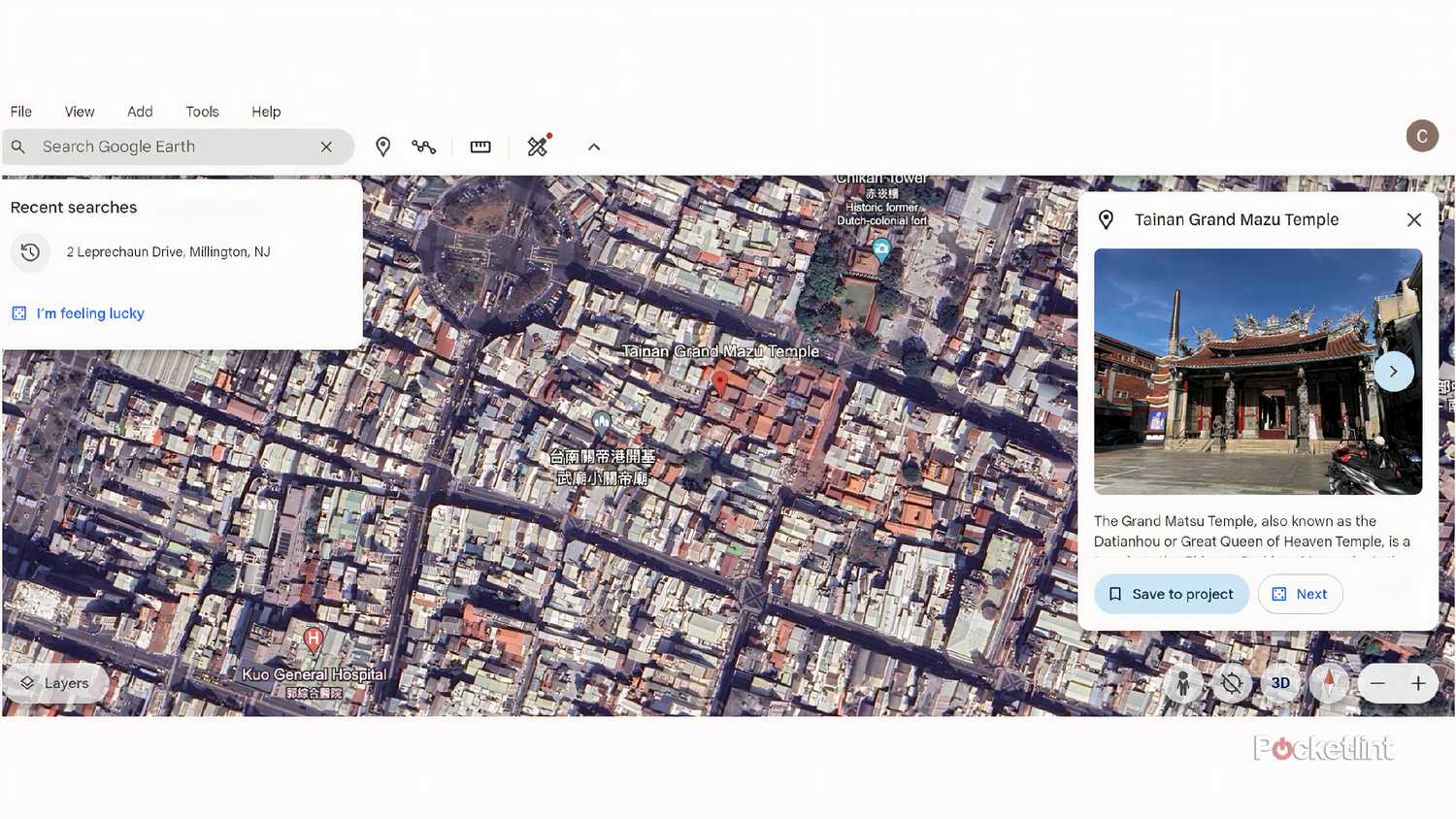
The Google Earth interface has many tools to help you explore. You can zoom in and out, move around, and search for places. Learning the main parts will make your experience easier.
| Interface Element | Description |
| Search Bar | Type a place name or address to find it quickly. |
| Zoom Controls | Use + and – buttons to zoom in or out on the map. |
| Navigation Compass | Click and drag to change the view direction and tilt. |
| Layers Panel | Turn different map features on or off, like roads or borders. |
Mastering The Bird’s Eye View
Bird’s Eye View in Google Earth offers a unique way to see places from an angled perspective. It helps you understand landscapes and buildings better than a flat map.
This guide shows you how to activate and use Bird’s Eye View with simple steps. You will also learn how to tilt and rotate the view for clearer images.
Activating Bird’s Eye Mode
To see Bird’s Eye View, you first need to activate the mode in Google Earth. Not all locations support this view, but many urban areas do.
- Open Google Earth on your device.
- Search for a city or place you want to explore.
- Zoom in until the map switches from flat to angled view.
- Look for the “Bird’s Eye” or “3D” button and click it.
- The map will change to show buildings and terrain in 3D.
Using Tilt And Rotate Features
Tilt and rotate let you change how you see the map. Tilt changes the angle up or down. Rotate turns the view left or right.
| Feature | How to Use | Effect |
| Tilt | Drag the tilt control or scroll mouse wheel | Changes the vertical angle of view |
| Rotate | Hold right mouse button and move mouse | Rotates the view around a point |
| Zoom | Scroll mouse wheel or pinch on touch screen | Moves closer or farther from the surface |
Exploring Aerial Perspectives
Bird’s Eye View in Google Earth lets you see places from high above. It shows a wide area in great detail. This view helps you explore cities, nature, and landmarks from an aerial angle.
Using Google Earth, you can zoom in and out or switch between flat and angled views. These tools give you a clear understanding of the landscape and geography.
Zooming Techniques
Zooming changes how close or far the map looks. You can zoom smoothly to see details or get a big picture. Use your mouse, keyboard, or touch screen to zoom easily.
- Scroll the mouse wheel up to zoom in
- Scroll the mouse wheel down to zoom out
- Double-click on the map to zoom in quickly
- Use the plus (+) and minus (–) buttons on the screen
- Pinch with two fingers on a touch screen to zoom
Switching Between 2d And 3d Views
Google Earth lets you change from a flat 2D map to a 3D view. The 3D view shows buildings and terrain with height and depth. Switching views gives you different ways to explore locations.
| View Mode | Description | How to Activate |
| 2D View | Flat map with top-down perspective | Click the 2D button or press “R” to reset |
| 3D View | Angled view with buildings and landforms | Use the tilt control or press Shift + Scroll |
Credit: www.pocket-lint.com
Tips For Smooth Navigation
Using the birds eye view in Google Earth can help you see places from above. Smooth navigation makes this experience better.
Learn how to move around easily with keyboard shortcuts and mouse or touchpad controls.
Keyboard Shortcuts
Keyboard shortcuts let you move and zoom without clicking many buttons. This saves time and keeps your view steady.
- Arrow Keys: Pan the view up, down, left, or right.
- +and –keys: Zoom in and out quickly.
- R: Reset the view to north-up orientation.
- Ctrl + Arrow Keys: Tilt the camera angle.
- Shift + Arrow Keys: Rotate the view clockwise or counterclockwise.
Mouse And Touchpad Controls
Using a mouse or touchpad can give you more control over the birds eye view. Try these simple actions for smooth moves.
| Action | Effect |
| Scroll wheel or two-finger swipe | Zoom in and out |
| Click and drag (left button) | Pan the map |
| Right-click and drag or two-finger rotate | Rotate the view |
| Shift + drag | Tilt the camera angle |
| Double click | Zoom in quickly |
Discovering Hidden Features
Using Google Earth’s Birds Eye View reveals many hidden details. This helps you explore places from high above with clear angles.
You can find unique features by using special tools inside Google Earth. These tools give you different ways to look at the world.
Historical Imagery
Historical Imagery lets you see past satellite photos of the same place. It shows how areas have changed over time.
- Open Google Earth and find your location.
- Click the clock icon to access historical images.
- Use the timeline slider to view different years.
- Compare old and new views to spot changes.
- Zoom in for more details on each image.
Street View Integration
Street View lets you explore places on the ground level. It connects with Birds Eye View to give a full picture.
| Feature | Birds Eye View | Street View |
| View Angle | Oblique, from above | Eye level, panoramic |
| Best For | Large area overview | Close-up details |
| Interactivity | Rotate and zoom | Walk through streets |
| Time Period | Current and historical | Current only |
Using Bird’s Eye View For Specific Purposes
Bird’s Eye View on Google Earth shows detailed angled images. This view gives a clear look at buildings, roads, and natural features.
People use Bird’s Eye View for many tasks. It helps with planning, learning, and exploring areas from above.
Planning Trips And Routes
Bird’s Eye View helps travelers see their path before starting. It shows real layouts of streets and landmarks. This helps to avoid confusion during the trip.
- Check road conditions and intersections
- Identify parking areas near destinations
- Spot natural obstacles like rivers or hills
- Plan rest stops in safe and scenic spots
- Estimate walking distances between points
Studying Geography And Landmarks
Bird’s Eye View gives a close look at physical geography. It shows shapes of mountains, rivers, and cities. This makes it easy to compare areas and learn about landmarks.
| Feature | What You Can See | Use |
| Mountains | Slopes and peaks | Study terrain and elevation |
| Rivers | Water paths and bends | Understand water flow and nearby land |
| Buildings | Shapes and heights | Recognize landmarks and urban layout |
| Parks | Green spaces and trails | Learn about nature areas |
Troubleshooting Common Issues
Birds Eye View in Google Earth shows detailed images from above. Sometimes, it may not load or work well. This guide helps fix common problems.
Follow simple steps to solve errors and improve how Google Earth runs on your device.
Fixing Loading Errors
Loading errors can stop the Birds Eye View from showing. These errors happen due to slow internet or app glitches.
Clear cache and update your Google Earth app to fix loading problems. Check your internet connection speed and stability.
- Restart Google Earth and your device
- Clear browser or app cache
- Update the app to the latest version
- Switch to a faster internet network
- Disable VPN or proxy if active
Improving Performance
Google Earth may lag or freeze during Birds Eye View. This happens if your device has low memory or slow graphics.
Lower the image quality and close other apps to boost performance. Use devices with better hardware for smoother viewing.
- Reduce image resolution in settings
- Close unused programs running in background
- Restart your device regularly
- Use a device with enough RAM and graphics power
- Keep your system and drivers updated
Credit: medium.com
Frequently Asked Questions
How Do I Activate Birds Eye View On Google Earth?
To activate Birds Eye View, open Google Earth and zoom in on your location. Use the tilt control or press “Shift” while dragging the mouse to change the angle. This reveals a 3D angled view, offering a detailed perspective of buildings and terrain.
Can I Use Birds Eye View On Google Earth For Free?
Yes, Birds Eye View is available for free on Google Earth’s desktop and web versions. No additional subscription or payment is required. Simply access Google Earth, and use the tilt feature to enjoy the Birds Eye perspective.
Which Devices Support Birds Eye View On Google Earth?
Birds Eye View works best on desktop computers and laptops with Google Earth Pro or the web version. Some mobile devices offer limited 3D tilt features, but full Birds Eye View is usually available on desktops with 3D graphics support.
How Accurate Is The Birds Eye View Imagery On Google Earth?
Birds Eye View imagery is highly accurate, sourced from aerial and satellite photos. It provides detailed, real-world views but may have slight delays due to update frequency. This view helps users explore locations realistically and with precise detail.
Conclusion
Exploring Google Earth with a bird’s eye view is simple. This tool offers a new perspective on our world. You can see places you dream of visiting. Or revisit locations dear to your heart. It’s a fun and educational way to learn geography.
Easy to use for anyone, anywhere. Google Earth brings the world closer. Try it and enjoy the journey. You’ll see our planet like never before. Discover, explore, and learn with each click. A perfect tool for curious minds. Dive into endless adventures with just a few clicks.




