
If you’ve just got your Bird Buddy Camera or are thinking about getting one, you might be wondering how to test it properly. You want to make sure it works perfectly before relying on it to capture those beautiful bird moments.
Testing your camera the right way helps you avoid frustrating surprises and ensures you get the best shots. In this guide, you’ll discover simple steps to check every important feature of your Bird Buddy Camera. By the end, you’ll feel confident that your camera is ready to bring nature closer to you like never before.
Keep reading, and let’s make sure your Bird Buddy Camera is working just as it should.
Choosing The Right Location
Choosing the right location for your Bird Buddy Camera is key to capturing clear and exciting bird moments. The spot you pick affects the quality of your photos and the number of birds you see. Focus on areas that offer good visibility and a safe environment for birds to visit. Careful placement lets you enjoy watching birds without disturbing them.
Spot With Clear View
Place the camera where it has an open view of the bird feeder or birdhouse. Avoid spots blocked by walls or dense bushes. A clear line of sight helps capture sharp images and videos. Look for areas where sunlight can brighten the scene without causing glare.
Avoiding Obstructions
Remove any branches, wires, or objects that block the camera’s view. Obstructions can hide birds or cause blurry pictures. Check that nothing moves in the wind to avoid shaking the camera. Keep the lens clean and free from dirt or spider webs.
Considering Bird Activity
Observe where birds often gather in your yard or garden. Choose a spot near plants that attract birds, like flowering bushes or fruit trees. Place the camera close to water sources or feeders for more action. Changing the location over time can capture different bird species.
Setting Up The Camera
Setting up your Bird Buddy Camera is the foundation for capturing stunning bird moments right outside your window. Getting the camera positioned correctly and connected ensures you won’t miss any feathered visitors. Let’s break down how to mount, power, and configure your device to get it ready for action.
Mounting Options
Choosing the right spot for your Bird Buddy Camera is key. You want a location that offers a clear view of your bird feeder or garden area but also stays safe from weather and curious animals.
- Window Mount:Attach the camera inside your window using the included suction cups or adhesive pads. This gives a close-up view without worrying about rain or wind.
- Outdoor Mount:Use the bracket and screws to fix the camera on a tree branch, fence, or birdhouse. Make sure it’s stable and points directly toward the feeding area.
- Adjustability:The mounting system allows you to tilt and rotate the camera. This flexibility helps you capture the perfect angle as birds move around.
Have you noticed how a small change in camera angle can reveal a completely different bird behavior? That’s why testing a few positions helps you find the best spot.
Power And Connectivity
Your Bird Buddy Camera needs a reliable power source and a strong Wi-Fi connection to work smoothly. Before setting up, check where your power outlets and Wi-Fi signal are strongest.
- Power Options:Use the supplied USB cable and adapter to plug the camera into a nearby outlet. If you want a cleaner setup, consider a USB power bank or solar charger for outdoor use.
- Wi-Fi Setup:Connect the camera to your home Wi-Fi network through the Bird Buddy app. Make sure your network supports 2.4 GHz, as many smart devices don’t work well on 5 GHz bands.
- Signal Strength:Place the camera where the Wi-Fi signal is stable. Walls and thick glass can weaken the connection, causing delays in image transfers.
Have you tried moving your router or adding a Wi-Fi extender to improve connectivity? It can make a huge difference in the camera’s performance.
Initial Configuration
After mounting and powering your camera, it’s time to set it up through the Bird Buddy app. This step personalizes your experience and ensures the camera works exactly how you want.
- Pairing the Device:Follow the on-screen instructions to link the camera to your smartphone. This usually involves scanning a QR code or entering a unique device ID.
- Adjusting Settings:Customize motion detection sensitivity, photo intervals, and notifications. These settings help you catch the most interesting bird activity without being overwhelmed.
- Testing the Feed:Use the live view feature to check the camera angle and focus. Try triggering the motion sensor yourself by moving near the feeder to see if the camera responds promptly.
Don’t rush through this part. Taking a few extra minutes to fine-tune your camera setup can save you frustration and missed moments later on.
Calibrating Camera Settings
Calibrating camera settings is essential for clear and accurate bird watching. Proper calibration ensures the Bird Buddy Camera captures sharp images and detects bird movement effectively. Fine-tuning focus, exposure, and motion detection improves overall performance and user satisfaction.
Adjusting Focus
Start by placing the camera near the bird feeder or the area of interest. Use the camera’s focus controls to sharpen the image. Watch the live preview to confirm birds appear clear and detailed. Avoid blurry or soft images for better bird identification.
Optimizing Exposure
Exposure controls the brightness of your images. Bright sunlight or shadows can cause poor image quality. Adjust exposure settings to balance light and dark areas. Aim for natural colors and clear details in different lighting conditions. Test changes during different times of the day for best results.
Configuring Motion Detection
Motion detection triggers the camera to capture when birds move nearby. Set sensitivity to avoid false triggers from wind or leaves. Place the detection zone around the feeder or birdhouse. Test by moving your hand or a small object to ensure accurate activation. Proper settings save battery and storage space.

Credit: www.msn.com
Testing Bird Detection
Testing bird detection on your Bird Buddy camera ensures it captures every feathered visitor. This process checks the camera’s ability to spot birds and notify you quickly. Proper testing helps improve your birdwatching experience by confirming the camera works as expected.
Triggering With Movement
Place the Bird Buddy camera near a spot where birds often come. Move your hand slowly in front of the camera to simulate bird movement. Watch if the camera activates and starts recording or takes photos. Small movements help test the sensor sensitivity without real birds.
Checking Alerts And Notifications
After triggering movement, check your phone or device for alerts. The Bird Buddy app should send notifications when it detects birds. Confirm the alerts arrive quickly and show accurate information. This step ensures you don’t miss any bird sightings.
Reviewing Captured Images
Open the Bird Buddy app to see the pictures the camera took. Look for clear and focused images of birds or movement. Check if the camera captures birds at different times of the day. Reviewing images helps verify the camera’s detection and photo quality.
Troubleshooting Common Issues
Troubleshooting common issues with your Bird Buddy Camera helps keep it working smoothly. Problems can appear in image quality, connection, or false alarms. Knowing simple fixes saves time and frustration.
Poor Image Quality
Blurred or dark photos reduce your birdwatching joy. Clean the camera lens gently with a soft cloth. Check lighting around the camera; low light affects clarity. Adjust the camera angle for better sunlight. Make sure the camera firmware is up to date to improve image processing.
Connectivity Problems
Connection drops stop live feed and alerts. Place the camera closer to the Wi-Fi router for a stronger signal. Restart the camera and your router to refresh connections. Verify the Wi-Fi password is correct in the app. Avoid interference from other devices using the same network channel.
False Triggers
False triggers cause unnecessary notifications and drain battery. Move the camera away from moving branches or leaves. Adjust motion sensitivity settings in the app to reduce false alarms. Disable notifications during windy or rainy conditions. Regularly check for insects or debris on the sensor.

Credit: www.youtube.com
Enhancing Performance
Testing the Bird Buddy Camera ensures optimal performance. Verify the camera’s clarity by capturing images in different lighting. Check the connectivity by syncing with your smartphone to ensure seamless operation.
Enhancing the performance of your Bird Buddy Camera is crucial for capturing stunning avian moments. Whether you’re a bird-watching novice or a seasoned enthusiast, optimizing your camera’s functionality can make all the difference. By focusing on a few key areas, you can ensure that your Bird Buddy Camera delivers top-notch performance, capturing clear, vibrant images every time.Firmware Updates
Regularly updating your Bird Buddy Camera’s firmware is essential for maintaining peak performance. Firmware updates often include important fixes and new features that can enhance image quality and camera speed. Always check the manufacturer’s website or app for the latest updates and install them promptly to keep your device running smoothly.Using Accessories
Accessories can greatly enhance the capabilities of your Bird Buddy Camera. Consider using mounts or tripods to stabilize your camera for sharper images. Weatherproof covers can protect your device from the elements, ensuring it operates efficiently in various conditions.Optimizing Placement
The placement of your camera plays a pivotal role in capturing the best bird images. Choose spots with good lighting and minimal obstructions for unobstructed views. Experiment with different angles and heights to find the optimal position that brings out the vivid details of your feathered visitors. Are you taking full advantage of these strategies to enhance your Bird Buddy Camera’s performance? Implementing these tips can transform your bird-watching experience, bringing you closer to the wonders of nature.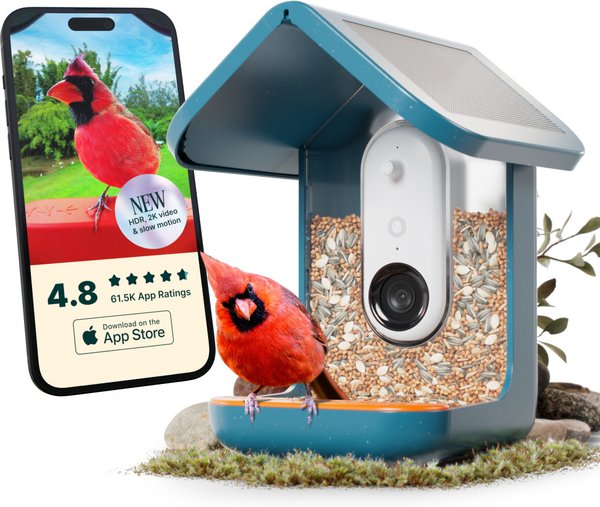
Credit: www.chewy.com
Frequently Asked Questions
How Do I Set Up The Bird Buddy Camera Initially?
To set up, charge your Bird Buddy Camera fully. Download the app, connect via Wi-Fi, and follow on-screen prompts. Position the camera near your bird feeder for best results. Ensure a stable network connection for seamless operation.
How Can I Test The Bird Buddy Camera’s Motion Detection?
Activate motion detection in the app settings. Move near the camera to trigger it. Check if the camera captures and notifies you of bird activity promptly. Adjust sensitivity if needed for better detection.
What Is The Best Way To Check Image Quality?
Review photos and videos in the app after capturing. Ensure images are clear and focused. Adjust camera angle or lighting if images appear blurry or dark. Regular cleaning of the lens can improve quality.
How Do I Verify Bird Buddy Camera Notifications?
Enable push notifications in the app settings. Perform a test by moving near the camera. Confirm that your device receives alerts instantly. Check notification permissions on your smartphone if alerts fail.
Conclusion
Testing your Bird Buddy Camera helps ensure clear bird photos and videos. Check the camera’s position for the best view of birds. Make sure the app connects smoothly to receive alerts and images. Test different lighting to see how well the camera adjusts.
Regular tests keep your device working well and catch issues early. Enjoy watching birds with confidence, knowing your camera performs as expected. Simple steps lead to better birdwatching experiences every day.




