
Have you ever wanted to see your neighborhood, favorite park, or a faraway city from high above, as if you were a bird soaring in the sky? Getting a bird’s eye view on Google Maps lets you do just that.
It’s not only exciting but also useful for exploring new places, planning trips, or simply satisfying your curiosity. In this guide, you’ll learn simple steps to unlock this powerful feature and see the world from a fresh, stunning perspective. Keep reading, and soon you’ll be navigating the skies right from your screen!
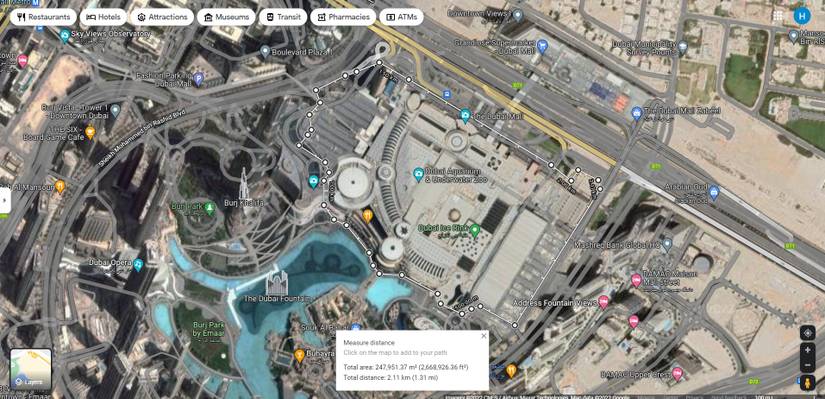
Credit: www.androidpolice.com
Accessing Bird’s Eye View
Bird’s Eye View shows maps from an angled, high-up view. It helps you see buildings and streets clearly.
You can access this view on Google Maps using a desktop or mobile device. The steps are simple and quick.
Using Desktop Browser
Open Google Maps on your desktop browser. Search for the place you want to see.
Click the “Satellite” button at the bottom left. This changes the map to satellite view.
To get Bird’s Eye View, tilt the map by clicking the compass icon or holding the tilt key while dragging the map.
- Use mouse wheel to zoom in closer
- Hold Shift and drag the map to tilt
- Click the compass to reset view
Using Mobile App
Open the Google Maps app on your phone. Find the place you want to see.
Tap the layers icon in the top right corner. Choose “Satellite” to switch views.
Use two fingers to swipe up or down on the screen to tilt the map. This shows the Bird’s Eye View angle.
- Pinch to zoom in or out
- Swipe with two fingers to tilt the map
- Tap compass to reset north
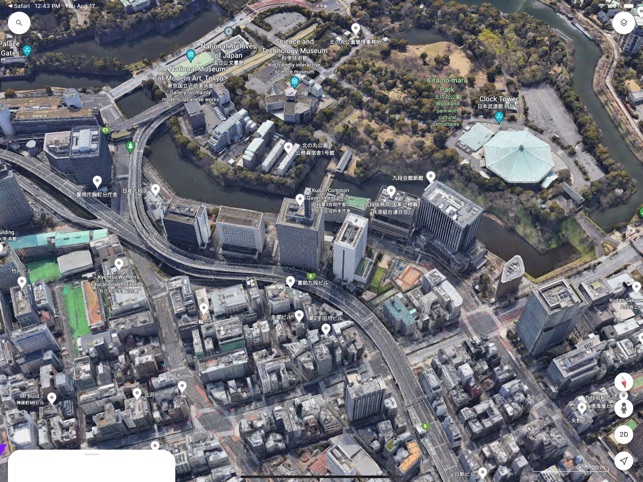
Credit: apps.apple.com
Switching To Satellite View
Google Maps lets you see places from above. You can switch from map view to satellite view.
Satellite view shows real images from space. It helps you get a bird’s eye view of any location.
Open Google Maps On Your Device
First, open Google Maps on your phone, tablet, or computer. You can use the app or a web browser.
Make sure you have an internet connection to load the images properly.
Find The Satellite Button
Look at the bottom left or right corner of the screen. You will see a button labeled “Satellite.”
Click or tap this button to change the map style from default to satellite images.
- The button often shows a square or globe icon.
- It may be near the map type options or layers menu.
Zoom In And Out To Adjust View
Use the plus and minus buttons to zoom in or out on the map. This changes how much area you see.
Zooming in gives a closer bird’s eye view. Zooming out shows larger areas from above.
- Pinch on touchscreens to zoom.
- Use mouse scroll wheel on computers.
Switch Back To Map View
If you want to return to the regular map, click the “Map” or “Default” button near the satellite option.
This switches the view back to roads and place names instead of satellite images.
Enabling 3d And Tilt Features
Google Maps allows you to see a bird’s eye view by enabling 3D and tilt features. These options give you a better sense of height and perspective.
This guide shows how to use mouse controls and touch gestures to activate these views easily.
Using Mouse Controls
You can use your mouse to tilt and rotate the map for a 3D bird’s eye view. It works well on desktop computers and laptops.
- Hold the Ctrl key (Cmd key on Mac) and click the left mouse button.
- Drag the mouse up or down to tilt the map.
- Drag the mouse left or right to rotate the view.
- Use the scroll wheel to zoom in and out smoothly.
- Click the 3D button on the bottom right if available to switch to 3D mode.
Using Touch Gestures
On touchscreen devices, you can use gestures to tilt and rotate the map. This method is handy on phones and tablets.
| Gesture | Action |
| Two fingers drag up or down | Tilt the map to see 3D angles |
| Two fingers twist | Rotate the map view |
| Pinch in or out | Zoom in or out of the map |
Exploring Popular Bird’s Eye Locations
Google Maps offers a bird’s eye view that shows detailed images from above. This view helps you see places clearly and explore famous spots worldwide.
Many popular locations look amazing from this angle. You can find cities, landmarks, and natural wonders in sharp detail.
New York City, Usa
New York City looks stunning from the bird’s eye view. You can see its tall buildings, streets, and Central Park.
This view helps explore famous places like Times Square and the Statue of Liberty in detail.
Paris, France
Paris shows its beautiful layout from above. The Eiffel Tower stands out clearly in the bird’s eye view.
You can also see the Seine River and wide streets that make Paris unique.
Tokyo, Japan
Tokyo’s dense cityscape looks detailed from the bird’s eye view. You can spot busy roads and tall skyscrapers.
This view helps explore popular areas like Shibuya and Shinjuku with ease.
Great Barrier Reef, Australia
The Great Barrier Reef is a natural wonder seen well from above. The bird’s eye view shows bright blue water and coral patterns.
This view helps explore the reef’s size and beauty without diving underwater.
Grand Canyon, Usa
The Grand Canyon looks impressive from the bird’s eye view. You can see its deep valleys and colorful rock layers clearly.
Bird’s eye views show the canyon’s vast size and natural beauty in detail.
Tips For Better Bird’s Eye Experience
Seeing a bird’s eye view on Google Maps gives you a clear, detailed look at places. It helps you explore cities, parks, and landmarks from above.
To get the best bird’s eye experience, try some simple tips. These will help you see clearer and keep the view updated.
Adjusting Zoom Levels
Zooming in and out changes how much detail you see on Google Maps. The right zoom level shows the best bird’s eye view.
Try different zoom levels to find the clearest view. Too close may blur details, too far may hide important features.
- Start with a medium zoom to see a good area size
- Zoom in slowly to check for more details
- Zoom out to get a wider perspective
- Use the zoom buttons or mouse scroll wheel
Clearing Cache For Updates
Google Maps may show old images if your browser cache is full. Clearing the cache helps you see the newest bird’s eye photos.
Clear the cache regularly to avoid outdated views. This keeps your map experience fresh and accurate.
- Go to your browser settings
- Find the option to clear browsing data
- Select cached images and files
- Clear the cache and reload Google Maps
Common Issues And Fixes
Seeing the bird’s eye view on Google Maps can sometimes be tricky. Users face issues like slow loading or missing images. Knowing common problems helps fix them fast.
This guide covers two main problems: loading problems and unavailable locations. Each section offers simple fixes you can try yourself.
Loading Problems
Bird’s eye images may take long to load or fail to appear. This happens due to slow internet or browser glitches. Clearing cache and restarting the app often helps.
- Check your internet connection speed and stability.
- Clear your browser or app cache to remove old data.
- Update your browser or Google Maps app to the latest version.
- Restart your device to fix temporary issues.
- Disable browser extensions that may block map content.
Unavailable Locations
Sometimes bird’s eye view is not available for certain places. This is common for remote or new areas. Google may not have updated images yet.
| Reason | Fix |
| Area too remote or private | Try a nearby location with available images |
| Images not updated | Check back later for updates |
| Location restricted by local laws | Use satellite or street view if available |
| App or browser error | Restart app or clear cache |

Credit: www.reddit.com
Frequently Asked Questions
How Do I Enable Bird’s Eye View On Google Maps?
To enable Bird’s Eye View, open Google Maps, enter your location, then switch to satellite mode. Zoom in and tilt the map to see angled aerial images resembling Bird’s Eye View.
Can I Use Bird’s Eye View On Mobile Devices?
Yes, Bird’s Eye View works on both Android and iOS. Use the Google Maps app, switch to satellite view, and use two fingers to tilt and rotate the map.
Is Bird’s Eye View Available Worldwide On Google Maps?
Bird’s Eye View is limited to specific cities and landmarks. Coverage varies by region, so it may not be available everywhere on Google Maps.
What’s The Difference Between Bird’s Eye And Satellite View?
Bird’s Eye View shows angled aerial photos for a 3D effect. Satellite View provides a flat, top-down image without perspective or depth.
Conclusion
Exploring Google Maps’ bird’s eye view is simple and fun. It offers a unique perspective of cities and landscapes. A few clicks and you’re soaring above streets. This feature helps in planning trips or just exploring new places. It’s accessible on most devices, making it convenient.
With this guide, accessing bird’s eye view becomes easy. Try it today and see the world differently. Enjoy discovering new sights from your screen. Happy exploring!




