
Have you ever wished you could see your neighborhood, a favorite landmark, or even your own home from high above? Getting a bird’s eye view on Bing Maps lets you do just that — giving you a fresh perspective that’s both detailed and easy to explore.
Whether you’re planning a trip, checking out real estate, or just curious about the world around you, knowing how to unlock this feature can make your experience more exciting and useful. Keep reading, and you’ll learn simple steps to get that stunning aerial view right at your fingertips.
Accessing Bing Maps
Bing Maps offers detailed maps and aerial views. You can see a bird’s eye view to explore areas from above.
This guide explains how to access Bing Maps on different devices.
Navigating To The Website
To use Bing Maps on your computer, open your web browser and go to the Bing Maps website. The address is easy to remember and quick to load.
- Open any web browser on your computer.
- Type www.bing.com/mapsin the address bar.
- Press Enter to visit the site.
- Once loaded, you can search for locations using the search box.
Using The Mobile App
You can also use Bing Maps on your smartphone or tablet through the mobile app. The app provides easy access to map features anywhere.
| Action | Details |
|---|---|
| Download | Find the Bing Maps app in your device’s app store. |
| Install | Tap install or get to download the app. |
| Open | Launch the app from your home screen. |
| Search | Use the search bar to find locations. |

Credit: sharonknowles.medium.com
Switching To Bird’s Eye View
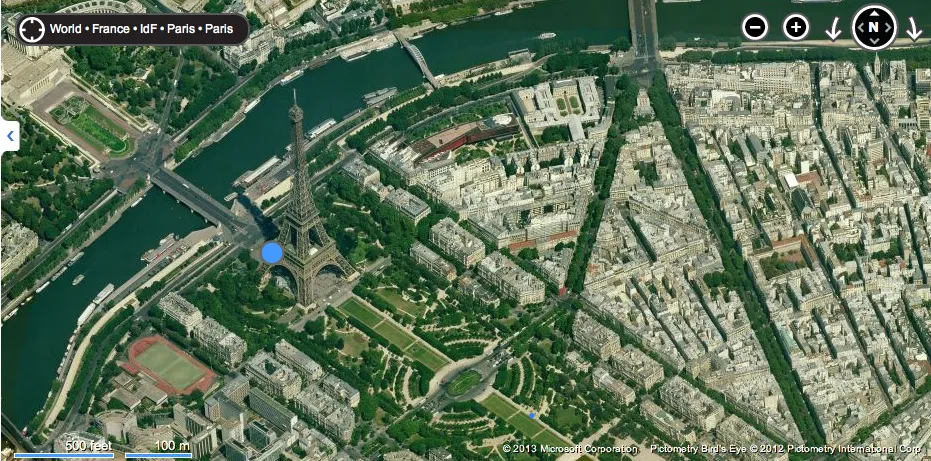
Bing Maps offers different ways to see a location. One special way is Bird’s Eye View. This view shows images from an angle, giving a clear look at buildings and streets.
This guide helps you switch to Bird’s Eye View on Bing Maps. Follow simple steps to find and use this feature.
Locating The View Options
First, open Bing Maps on your device. Look for the controls that let you change the map view. These controls are usually near the top or side of the screen.
- Find the map type icon or menu
- Click or tap to open view options
- Look for labels like “Road”, “Aerial”, or “Bird’s Eye”
Selecting Bird’s Eye Mode
After opening the view options, select Bird’s Eye Mode. This mode shows angled aerial images. It works best in certain areas and zoom levels.
| Action | Description |
| Click “Bird’s Eye” | Switch map to angled aerial images |
| Zoom In | Get a closer look at buildings and landmarks |
| Use Pan | Move the view to explore nearby places |
Exploring Bird’s Eye Features
Bing Maps offers a Bird’s Eye view for a detailed look at locations. This view shows images from an angled perspective. It helps you see buildings, streets, and landscapes clearly.
The Bird’s Eye view gives more depth than the standard map. You can explore places with better detail and angles. It is useful for planning trips or studying areas closely.
Zooming And Panning
You can zoom in to see more details in Bird’s Eye view. Zooming lets you focus on smaller areas or objects. Panning moves the view to different parts of the map smoothly.
Use the mouse wheel or zoom buttons to zoom in and out. Click and drag the map to pan around. This helps you explore wide areas without losing detail.
- Scroll mouse wheel up to zoom in
- Scroll mouse wheel down to zoom out
- Click and hold left mouse button to pan
- Use zoom buttons on the screen for control
Adjusting Viewing Angles
Bing Maps allows you to change the angle of the Bird’s Eye view. This shows the scene from different heights and directions. Adjusting angles helps you see hidden details.
Use the rotate button or keyboard shortcuts to change the view angle. Tilt the view up or down to get the best perspective. This feature makes the map more interactive.
- Click rotate icons to turn the map view
- Use arrow keys for quick angle changes
- Tilt the view with specific controls on screen
- Combine zoom and angle for better detail

Credit: redsolotraveler.com
Benefits Of Bird’s Eye View
Bird’s Eye View on Bing Maps shows images from an angle. This view gives a clear picture of buildings and streets. It helps you see places like you are flying above them.
This view is useful for many tasks. It makes maps easier to understand and helps with planning routes. You can explore areas with more details than regular maps.
Detailed Imagery
Bird’s Eye View provides sharp and clear pictures. You see roofs, parks, and trees from a side angle. This detail helps you recognize places better than flat maps.
- View building shapes and heights
- Identify landmarks easily
- Check parking lots and open spaces
- See natural features like rivers and hills
Enhanced Navigation
This view helps you plan trips and find routes faster. You can spot roads, paths, and intersections clearly. It reduces the chance of getting lost in unknown areas.
| Navigation Feature | Benefit |
| Clear road views | Easier route planning |
| Visible landmarks | Better orientation |
| Building angles | Improved destination spotting |
Troubleshooting Common Issues
Getting a bird’s eye view on Bing Maps helps you see places from above. Sometimes, the view may not load or images look blurry. Fixing these issues can improve your experience.
This guide covers common problems and easy ways to solve them. Follow these tips to enjoy clear and fast loading maps.
View Not Loading
If the bird’s eye view does not load, check your internet connection first. A slow or unstable connection can stop images from appearing.
- Refresh the browser or app to try loading again.
- Clear your browser cache and cookies to remove old data.
- Make sure your browser or app is updated to the latest version.
- Disable any browser extensions that might block map content.
- Try using a different browser or device to see if the issue continues.
Image Quality Problems
Sometimes images on Bing Maps look blurry or pixelated. This can happen if the resolution is low or the map zoom level is too high.
| Cause | Solution |
| Low resolution images | Zoom out to see clearer pictures |
| Slow internet speed | Use a faster connection or wait for images to load |
| Old browser version | Update your browser or app |
| Map data not updated | Check back later for newer images |
Advanced Tips And Tricks
Bing Maps offers a unique Bird’s Eye view that shows detailed aerial images. This view gives a clear picture of places from an angled perspective.
Use these advanced tips to get the most out of the Bird’s Eye view. It helps you see directions and share locations easily.
Using Bird’s Eye With Directions
You can see your route in Bird’s Eye view on Bing Maps. This shows streets and buildings with more detail than a normal map.
Use Bird’s Eye to check road conditions and landmarks along your way. It helps you understand turns and stops better.
- Enter start and end points in Bing Maps.
- Click the directions button to get your route.
- Switch to Bird’s Eye view by selecting the option on the map.
- Zoom in or out to see details or a bigger area.
- Use this view to plan trips or check traffic visually.
Saving And Sharing Views
You can save a Bird’s Eye view for later use. This lets you return to the same spot quickly.
Sharing Bird’s Eye views makes it easy to show others exact locations or routes. You can send links or embed maps.
- Click the share button on Bing Maps.
- Choose to copy the link or get an embed code.
- Save your favorite views in your Bing account for quick access.
- Send links to friends or coworkers to share detailed views.
- Use saved views to compare changes in places over time.
Credit: geoawesome.com
Frequently Asked Questions
How Do I Activate Birds Eye View On Bing Maps?
To activate Birds Eye View, open Bing Maps and zoom in on your location. Click the “Birds Eye” button in the lower right corner to switch from the standard map view. This provides an angled aerial perspective for better spatial understanding.
Can I Use Birds Eye View On Mobile Devices?
Yes, Bing Maps supports Birds Eye View on most smartphones and tablets. Simply open the app or mobile site, zoom in, and select the Birds Eye option if available. Performance may vary based on device and internet speed.
What Areas Have Birds Eye View Coverage On Bing Maps?
Birds Eye View coverage is available mostly in urban and populated areas across the US, Canada, and some parts of Europe. Rural or remote locations may not have this feature due to limited aerial imagery data.
Is Birds Eye View Different From Satellite Imagery?
Yes, Birds Eye View offers angled, high-resolution aerial images, unlike traditional top-down satellite views. This angle shows building sides and street details, giving a more realistic sense of the environment and layout.
Conclusion
Exploring Bing Maps’ bird’s eye view is simple and fun. This feature offers unique perspectives of locations. You can enjoy more details than a standard map view provides. Just a few clicks and you’re ready to dive into a new world.
Experiment with different areas and see what you discover. It’s a great tool for planning trips or just exploring from home. Try it today and see places like never before. With Bing Maps, the world is at your fingertips. Start exploring now.




