What Bird’s Eye View Actually Means in Sims
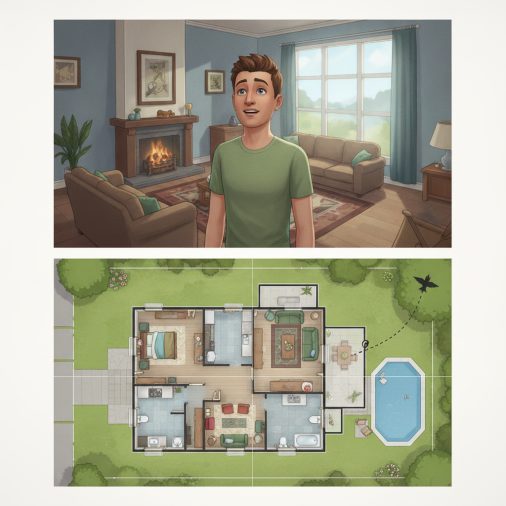
Getting Bird’s Eye View in Sims 4 on PC or Mac
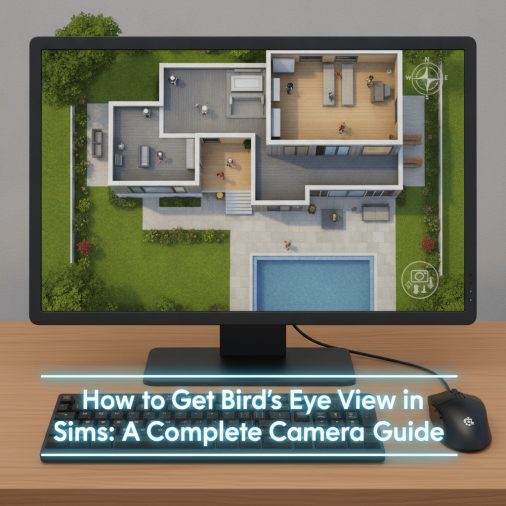
Default Sims Camera
1. Scroll out — Roll your mouse wheel away from you to zoom the camera out. 2. Tilt the camera upward — Hold the right mouse button and drag downward on your screen. This tilts the camera angle so you’re looking more steeply down at the lot. 3. Raise the camera height — Press and hold Page Up to elevate the camera position. Combined with tilting, this gives you a strong overhead perspective. 4. Rotate as needed — Use Q and E keys to spin the camera around for the best vantage point.WASD (Game Camera) Mode
First, enable it: go to Game Options → Controls & Camera → Sims 4 Camera and switch to WASD Camera. 1. Use W, A, S, D to pan the camera across the lot. 2. Press E to raise the camera elevation and Q to lower it. 3. Hold right-click and drag to tilt and rotate the view. 4. Scroll out to zoom back for a wider view. The WASD mode generally makes it easier to get a steep top-down angle because you have more direct control over the camera’s vertical position. Many builders prefer it for this reason. If you want a full walkthrough of how this works in Build Mode specifically, the guide on getting a bird’s eye view in Sims 4 Build Mode covers that in more detail.Using Tab Mode (Free Camera) for Precise Angles
Pressing Tab in The Sims 4 activates free camera mode, which removes the standard camera restrictions entirely. This is particularly useful when you want very precise control over your angle. In free camera mode: – Use W, A, S, D to fly the camera around freely. – Use Q and E to move up and down. – Hold right-click and drag to look in any direction. – Scroll in and out to adjust your field of view. To get a true overhead shot in Tab mode, press E repeatedly to climb high above the lot, then tilt the view directly downward by dragging your mouse. This is popular for taking screenshots of builds from a clean top-down perspective. Press Tab again when you want to exit and return to normal gameplay.Getting the View on Console (PS4, PS5, Xbox)
Camera controls on console are a bit more limited, but you can still get a reasonable bird’s eye angle: – Right stick — Rotate and tilt the camera. Push it to look from a steeper downward angle. – L2 / LT — Zoom out. – R2 / RT — Zoom in. – D-pad up — Raises the camera level on some configurations. Console players don’t have access to the same free-camera Tab mode available on PC. You’ll need to work with the default camera system, which still allows for a solid overhead angle when combined with zooming out and tilting.Useful Camera Shortcuts Summary
| Action | PC Default Camera | PC WASD Mode | Console |
|---|---|---|---|
| Zoom out | Mouse scroll wheel | Mouse scroll wheel | L2 / LT |
| Tilt camera down | Right-click + drag | Right-click + drag | Right stick |
| Raise camera height | Page Up | E key | D-pad up |
| Lower camera height | Page Down | Q key | D-pad down |
| Rotate view | Q / E keys | Right-click + drag | Right stick |
| Free camera toggle | Tab key | Tab key | Not available |
Adjusting the Camera in Older Sims Games
If you’re playing an older title in the series, the controls differ somewhat. The Sims 3 uses a similar system to Sims 4 but without the Tab free camera. You can still zoom out with the scroll wheel and tilt by holding right-click and dragging. The camera doesn’t go quite as high as in Sims 4, but a solid overhead angle is achievable. The Sims 2 has a somewhat more restricted camera, but scrolling out and using the right-click tilt still gets you a reasonable bird’s eye perspective. It won’t be quite as steep or flexible as in later games. The Sims (original) uses a mostly isometric camera with limited flexibility. You can rotate in fixed 90-degree increments and zoom in and out, but true freeform bird’s eye positioning isn’t available.Why the Camera Gets Stuck or Won’t Tilt Far Enough
A common frustration is feeling like the camera won’t tilt far enough down, or that it snaps back to a certain angle. Here are a few reasons this happens and what to do: Camera collisions are on. By default, the camera may stop moving when it would clip through walls or rooftops. Switching to free camera (Tab) bypasses this. You’re in Live Mode vs. Build Mode. Camera behavior can vary slightly between modes. Build Mode in Sims 4 often allows you to pull the camera back further and get steeper overhead angles, which is why it’s favored for seeing full lot layouts. The camera is at maximum height. Keep pressing Page Up (or the E key in WASD mode) — the camera can go higher than many players realize before hitting the ceiling. You’re zoomed in too close. Scroll all the way out before trying to tilt. The overhead angle is much more achievable when the camera is already pulled back. If you get too deep into a mode and want to return to normal, the tips on how to get out of bird’s eye view in Sims can help you navigate back quickly.Turning Off or Resetting the View
Sometimes after experimenting with angles, you want to snap back to a standard playing perspective. In Sims 4, pressing Ctrl + Shift + Tab resets the camera to a default position. You can also simply zoom back in and re-tilt the camera to your normal preferred angle. If you’ve activated Tab free camera and want to return to normal gameplay controls, just press Tab again. For players who find the overhead view disorienting or accidentally activated it, there’s a helpful guide specifically covering how to turn off bird’s eye view in Sims 4.Tips for Getting Better Screenshots from Above
If your goal is capturing a clean overhead screenshot of your lot or build, a few extra steps make a big difference: – Hide the UI — Press Ctrl + Shift + H to toggle the heads-up display off before screenshotting. – Use Tab mode — The free camera removes all camera collision restrictions and lets you position the shot exactly where you want it. – Time of day matters — Lighting at midday (around 12pm in-game) gives the most evenly lit overhead shot. Early morning or late afternoon creates strong shadows that can obscure details. – Turn off grid lines — In Build Mode, toggle the grid off so it doesn’t appear in your shot. – Raise the elevation high — The higher you go, the more of the lot you capture in one frame. For capturing wide overhead images specifically, some players use external screenshot software like ShareX or the built-in Sims 4 camera system located in the upper-right corner of the screen, which saves screenshots directly to your Sims 4 screenshots folder.Frequently Asked Questions
How do I get a bird’s eye view in Sims 4 without losing control of my Sim? Adjusting the camera angle doesn’t affect your Sim’s actions. Your Sim will continue doing whatever they were doing while you pan, zoom, or tilt. Just remember that Tab free camera pauses normal camera interaction — press Tab again to return to the standard camera and regain click-based control. Why does the camera zoom stop before I get high enough? The default Sims camera has a zoom ceiling. Switching to WASD camera mode in the settings or pressing Tab for free camera mode lets you go significantly higher. Most players who want a true top-down view find the WASD or Tab modes far more effective for this. Can I get a bird’s eye view in Sims 4 on a laptop without a mouse? Yes, though it’s trickier. On a laptop touchpad, use two-finger scroll to zoom out, and try using the camera control icons in the lower-right corner of the screen. The on-screen camera controls include rotate and zoom buttons that work without a mouse. A USB or wireless mouse will give you much better control. Does bird’s eye view work the same in Build Mode and Live Mode? The controls are the same, but Build Mode typically allows you to pull the camera back further and get a steeper overhead angle. In Live Mode, the camera may have slightly tighter restrictions depending on your settings and camera mode. How do I do a bird’s eye view in Sims 4 for building a house layout? The best approach for lot building is to switch to WASD camera mode, zoom all the way out, and press E repeatedly to raise the elevation. This gives you a clear overhead view of the lot footprint and wall placement. If you want even more detailed guidance on this process, the full walkthrough on how to do bird’s eye view in Sims 4 covers building-specific tips. Is there a way to lock the camera in bird’s eye view? The Sims 4 doesn’t have a native “lock camera” function for a specific overhead angle. However, once you’ve positioned it where you want, simply avoid using the scroll wheel or right-click drag, and the camera will stay roughly in place while you interact with your lot normally. What’s the difference between bird’s eye view and the camera zoom ceiling in Sims 4? The standard camera zoom ceiling is the maximum height the default camera can reach while still tracking your Sim. Bird’s eye view isn’t a locked mode — it’s just a combination of high elevation, steep downward tilt, and wide zoom. Free camera mode removes most of these limitations and gives you genuine freedom to position the camera anywhere above the lot.The best overhead angle in The Sims is usually a combination of scrolling far out, raising the camera with Page Up or the E key, and tilting using right-click drag. For building and screenshots, Tab free camera gives you the most control with no restrictions. Console players can get a workable overhead view through the right stick and zoom controls, even without the full flexibility of PC. Once you get comfortable with the camera system, pulling up a bird’s eye view becomes second nature.