
Are you excited to watch your feathered visitors up close? Turning on your Netvue Bird Feeder Camera is the first step to capturing every flutter and chirp right from your phone.
But if you’re unsure how to get started, don’t worry—you’re in the right place. In this guide, you’ll learn simple, clear steps to power up your camera quickly and easily. By the end, you’ll be ready to enjoy stunning birdwatching moments anytime, anywhere.
Keep reading, and let’s bring nature right to your fingertips!
Prepare The Camera
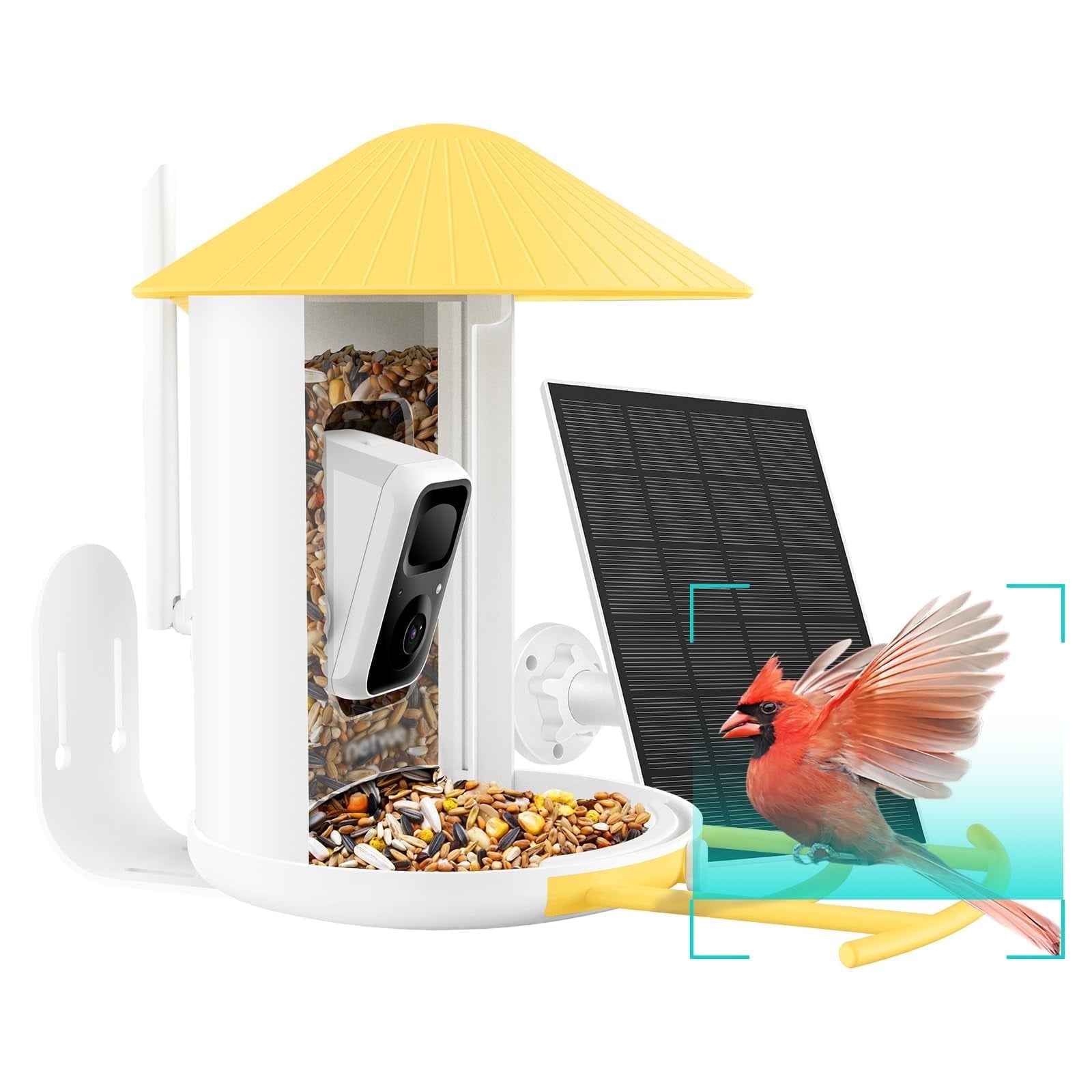
Preparing the Netvue Bird Feeder Camera is key to capturing clear, beautiful bird moments. Proper setup ensures the camera works smoothly right away. Take your time to ready the device before installation. The first steps involve charging the battery and inserting the memory card. These simple actions help the camera record and store footage effectively.
Charge The Battery
Start by fully charging the battery. Use the included USB cable and plug it into a power source. A full charge takes about 2-3 hours. Avoid using the camera while charging to save battery life. A charged battery ensures the camera runs longer outside without interruption.
Insert The Memory Card
Locate the memory card slot on the camera. Use a compatible microSD card with at least 16GB storage for smooth recording. Gently push the card into the slot until it clicks. Do not force it. The memory card stores your videos and photos. Without it, the camera cannot save any footage.
Power On The Device
Powering on your Netvue Bird Feeder Camera is the first step to capturing those special moments in your backyard. It might seem straightforward, but knowing exactly where and how to activate the device can save you time and frustration. Let’s walk through the simple process to get your camera up and running smoothly.
Locate The Power Button
The power button on the Netvue Bird Feeder Camera is usually discreetly placed to maintain the device’s sleek design. You’ll find it on the side or back of the camera body, often near the battery compartment or the ports.
Look for a small, slightly recessed button with a power icon. If you’re unsure, check the user manual or the quick start guide that came with your camera. Sometimes, the button blends in so well that it’s easy to overlook.
Press And Hold To Activate
Once you’ve found the power button, press and hold it for about 3 to 5 seconds. This long press is necessary to activate the device and avoid accidental shutdowns from brief taps.
You’ll notice the LED indicator light up or hear a startup sound, signaling that the camera is turning on. If nothing happens, try charging the battery or ensure it’s properly inserted, as low power can prevent activation.
Connect To Wi-fi
Connecting your Netvue Bird Feeder Camera to Wi-Fi allows live streaming and alerts. This step is essential for remote viewing and enjoying real-time bird activity. Follow the simple process to link the camera to your home network quickly.
Access The Netvue App
Download and open the Netvue app on your smartphone. Use the app to control and set up your camera. Ensure your phone is connected to the same Wi-Fi network you plan to use.
Select Your Network
Inside the app, navigate to the Wi-Fi settings for the camera. A list of available networks will appear. Tap on your home Wi-Fi network from the list to select it.
Enter Wi-fi Credentials
Type your Wi-Fi password carefully in the provided field. Double-check for accuracy to avoid connection errors. Submit the password, and the camera will connect to your network.
:max_bytes(150000):strip_icc()/rsp-camera-bird-feeder-tout-e10ecdf22ae844f59ff550e8ede9c550.jpg)
Credit: www.realsimple.com
Configure Camera Settings
Configuring the camera settings is essential for the best experience with your Netvue Bird Feeder Camera. Proper setup ensures clear video, accurate motion alerts, and timely notifications. Adjusting these settings helps you monitor your feathered visitors smoothly and without interruptions.
Adjust Video Quality
Open the Netvue app and access the camera settings. Select the video quality option. Choose from low, medium, or high resolution. High quality offers sharper images but uses more data. Medium quality balances clarity and data usage. Low quality saves data but reduces detail. Pick the setting that fits your internet speed and storage capacity.
Set Motion Detection
Navigate to the motion detection menu in the app. Turn on motion detection to start receiving alerts. Adjust the sensitivity level to avoid false alarms. Higher sensitivity detects smaller movements. Lower sensitivity reduces alerts from minor triggers. Define specific zones in the camera’s view to focus on bird activity only.
Enable Notifications
Go to the notifications settings within the app. Enable push notifications to get real-time updates. Choose alert types, such as motion alerts or sound detection. Make sure notifications are allowed on your phone. Customize quiet hours to avoid alerts during certain times. Stay connected to your bird feeder even when away.
Test The Camera
Testing the Netvue Bird Feeder Camera ensures it works correctly before regular use. This step helps confirm clear video quality, proper alerts, and camera features. Testing also prevents issues during bird watching.
View Live Feed
Open the Netvue app on your phone or tablet. Connect to the camera using the app’s interface. Check the video feed for clarity and smooth streaming. Make sure the camera angle captures the bird feeder well. Adjust the camera if the view is blurry or off-center.
Check Night Vision
Turn off the lights or cover the camera lens to simulate darkness. Observe the camera feed in the app during low light. Confirm the night vision activates automatically. The image should be clear enough to see birds at night. Clean the lens if the night vision appears dim or foggy.
Verify Motion Alerts
Move your hand or an object near the camera to trigger motion detection. Watch for alert notifications on your phone. Confirm alerts arrive quickly and show accurate images. Test the alert sound and vibration settings in the app. Adjust sensitivity if alerts are too frequent or rare.
Credit: www.walmart.com
Troubleshoot Common Issues
Troubleshoot Common Issues Activate your Netvue Bird Feeder Camera by ensuring it is fully charged and connected to Wi-Fi. Check the power button and confirm the LED indicator light is on.
Turning on your Netvue Bird Feeder Camera should be easy. Sometimes, you might face problems. Here are solutions to common issues. Ensure your bird-watching experience remains seamless.Camera Not Turning On
Check if the camera has power. Ensure it is properly plugged in. Sometimes, the power outlet might not work. Try plugging into a different outlet. Inspect the power cable for any damage. Replace if necessary. Press the power button firmly for a few seconds. This can help reset the camera.Wi-fi Connection Problems
Ensure your Wi-Fi is strong and stable. Weak signals cause connection issues. Move the camera closer to the router. Check if other devices have Wi-Fi access. Restart your router to refresh the connection. Ensure your camera connects to a 2.4GHz network. It may not support 5GHz.App Sync Errors
Make sure you have the latest app version. Updates fix bugs and improve performance. Log out of the app and log back in. This can help refresh the connection. Uninstall and reinstall the app if issues persist. This ensures a fresh start. Clear the app cache in your phone settings. It helps in resolving minor glitches.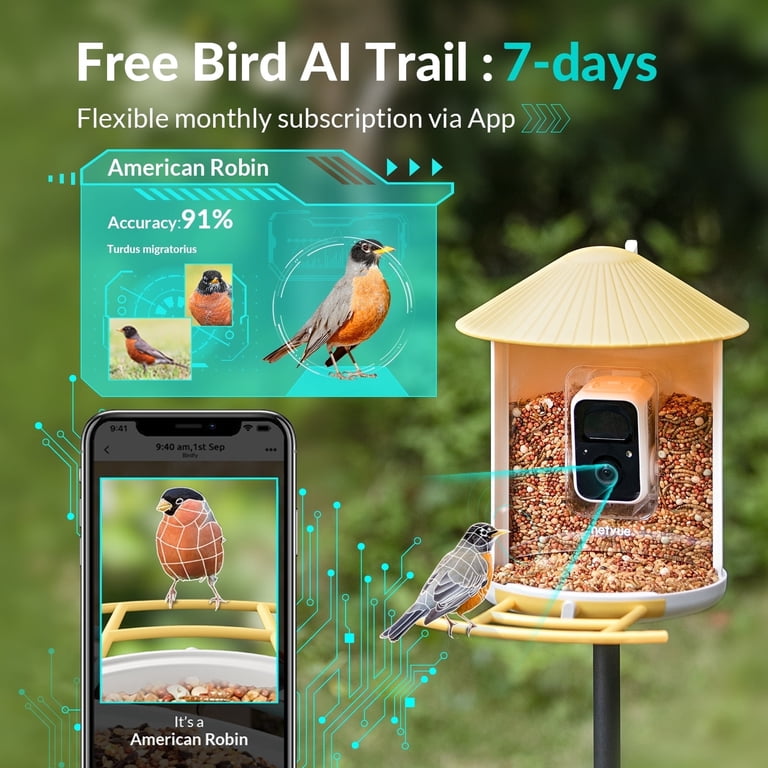
Credit: www.walmart.com
Frequently Asked Questions
How Do I Power On The Netvue Bird Feeder Camera?
To power on the Netvue Bird Feeder Camera, connect it to a power source using the included adapter. Press and hold the power button until the LED indicator lights up, signaling the device is on and ready to connect.
How To Connect Netvue Camera To Wi-fi Initially?
Open the Netvue app and follow the setup wizard. Select your Wi-Fi network, enter the password, and wait for the camera to connect. The LED will turn solid once connected successfully.
What To Do If Netvue Camera Won’t Turn On?
Ensure the power adapter is properly connected and the outlet works. Try a different power source or cable if needed. If the camera still won’t turn on, contact Netvue support for further assistance.
Can I Use Battery Power To Turn On The Camera?
No, the Netvue Bird Feeder Camera requires a stable power source via the adapter. It does not support battery-only operation for turning on or recording.
Conclusion
Turning on your Netvue Bird Feeder Camera is simple and quick. Just follow the steps carefully for the best results. Make sure the camera is charged and connected to Wi-Fi. Use the app to control and view the camera anytime.
Enjoy watching birds right from your phone. Keep the camera clean to get clear images. This device helps you connect with nature easily. Try it today and see the birds up close.




