Is your Bird Buddy Camera acting up or not connecting like it used to? You’re not alone.
Sometimes, a simple reset is all it takes to get your feathered friend’s favorite gadget back in perfect shape. In this guide, you’ll learn exactly how to reset your Bird Buddy Camera quickly and easily—no tech skills needed. Keep reading, and you’ll have your camera up and running smoothly in no time.
Credit: www.chewy.com
Reasons To Reset Bird Buddy Camera
Resetting your Bird Buddy Camera isn’t just a routine task; it can be a crucial step to keep your device running smoothly. Understanding why you might need to reset your camera helps you troubleshoot effectively and avoid unnecessary frustration. Whether it’s a glitch or a connectivity issue, knowing the reasons behind a reset can save you time and ensure your feathered friends are always captured perfectly.
Common Issues Requiring Reset
Sometimes your Bird Buddy Camera may freeze or become unresponsive. This can happen if the software encounters an unexpected error or if the camera overheats during prolonged use.
Connectivity problems are another frequent reason. You might notice the camera isn’t connecting to your Wi-Fi or the app fails to sync images. A reset often clears these hiccups by refreshing the device’s network settings.
Other signs include delayed notifications, blurry images, or the camera not saving photos correctly. These issues usually indicate that the system needs a fresh start to restore normal functionality.
When To Perform A Reset
Ask yourself if the problem persists after basic troubleshooting like restarting your app or power cycling the camera. If it does, it’s a good moment to consider a reset.
If you’ve recently changed your Wi-Fi password or network setup, resetting the camera helps it reconnect smoothly without manual reconfiguration. This avoids frustrating delays in getting the camera back online.
Also, if you plan to give your Bird Buddy Camera to someone else or sell it, a reset wipes your personal data and settings. This ensures your privacy and gives the new owner a clean start.
Have you ever ignored a minor glitch only to find it worsens later? Resetting early can prevent small issues from turning into bigger headaches. Are you ready to give your camera a fresh start?
Preparing For The Reset
Before you reset your Bird Buddy Camera, taking a few moments to prepare can save you time and prevent data loss. Resetting clears settings and stored information, so it’s essential to get ready properly. Here’s how you can set yourself up for a smooth reset experience.
Gathering Necessary Tools
Having the right tools at hand makes the reset process straightforward. You’ll typically need a small pin or paperclip to press the reset button on the camera. Also, keep your smartphone or tablet nearby since you’ll likely need it to reconnect the camera after the reset.
Check the camera’s manual or app for any specific requirements. Sometimes, a fully charged battery or a stable Wi-Fi connection is crucial to avoid interruptions. Do you have everything ready? Double-checking now can prevent frustration later.
Backing Up Important Data
Resetting your Bird Buddy Camera will erase all saved images and settings. Before you begin, back up your favorite bird photos and any custom configurations. You can transfer images to your phone or cloud storage quickly through the app’s export feature.
Think about what data you can’t replace. Saving this information ensures your birdwatching memories stay safe. Have you saved your data in more than one place? It’s a small step that can protect your collection from accidental loss.
Reset Methods
Resetting your Bird Buddy Camera can solve many common issues like connectivity problems or unresponsive behavior. Knowing the right reset method helps you avoid unnecessary frustration and get back to enjoying your birdwatching moments quickly.
Soft Reset Procedure
A soft reset is a simple way to refresh your Bird Buddy Camera without deleting any saved data or settings. This method is useful if the camera freezes or stops responding temporarily.
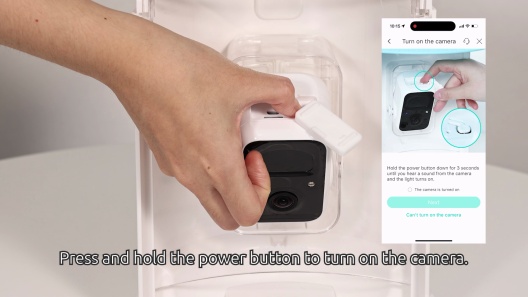
- Locate the power button on your camera.
- Press and hold the power button for about 5 seconds until the camera turns off.
- Wait a few seconds, then press the power button again to turn it back on.
This quick restart often fixes minor glitches. Have you noticed your camera acting slow? A soft reset might be all it needs.
Hard Reset Steps
A hard reset restores your Bird Buddy Camera to its original factory settings. This step removes all your custom preferences, so use it only when other fixes don’t work.
- Make sure the camera is powered on.
- Find the reset button, usually a small hole on the back or bottom of the device.
- Use a paperclip or similar tool to press and hold the reset button for 10 to 15 seconds.
- Release the button and wait for the camera to reboot automatically.
After a hard reset, you will need to set up the camera again from scratch. It’s like giving your device a fresh start. Have you tried this when other resets didn’t work? It often clears deeper software issues that a soft reset can’t fix.

Credit: support.mybirdbuddy.com
Post-reset Setup
After resetting your Bird Buddy Camera, the journey to get it back online and fully operational begins. The post-reset setup is crucial because it ensures your camera connects seamlessly to your network and functions just the way you want. Missing a step here can leave you staring at a blank feed or struggling with missed bird moments.
Reconnecting To Wi-fi
Once your camera resets, it loses its previous Wi-Fi connection. You’ll need to reconnect it to your home network to start receiving live updates again. Open the Bird Buddy app and follow the prompts to select your Wi-Fi network and enter the password.
Ensure your phone is connected to the same Wi-Fi network during this process for smooth pairing. If the camera doesn’t show up immediately, try moving it closer to your router or restarting both devices. Have you noticed weaker signals interfering with your device before? This simple check can save you a lot of frustration.
Reconfiguring Camera Settings
After Wi-Fi is set up, it’s time to personalize your camera settings. Adjust the motion detection sensitivity to avoid unnecessary alerts or missed visits. You can also set the camera’s active hours to match when birds are most likely to visit, saving battery life and storage space.
Don’t forget to revisit notification preferences. Your phone should alert you only when you want it to, not every time a leaf moves. Taking a few moments here means your Bird Buddy Camera works smarter, not harder.
Troubleshooting Reset Issues
Resetting the Bird Buddy Camera should be simple. Sometimes, problems arise during the reset process. These issues can stop your camera from working properly. Troubleshooting helps identify and fix these problems quickly. Here are common reset issues and how to solve them.
Reset Button Not Responding
The reset button may feel stuck or unresponsive. Dirt or debris might block the button. Try these tips to fix it:
- Gently clean around the reset button with a soft cloth.
- Use a small pin to press the button firmly but carefully.
- Check if the camera has enough battery power.
- Make sure you hold the button for the correct time, usually 10 seconds.
If the button still does not respond, the camera might have a hardware issue. Contact Bird Buddy support for further help.
Camera Still Malfunctioning
Resetting the camera may not fix all problems. The camera might still act strangely after a reset. Try these steps to improve performance:
- Restart the camera by turning it off and on again.
- Update the camera’s firmware through the app.
- Check your Wi-Fi connection for stability.
- Remove and reinsert the SD card if used.
If problems continue, reset the camera again or contact support. Persistent issues may need professional repair or replacement.
Tips To Maintain Camera Performance
Resetting your Bird Buddy Camera can enhance its performance. Start by locating the reset button on the device. Press and hold the button for a few seconds until the camera restarts. This simple step can resolve issues and improve functionality.
Maintaining the performance of your Bird Buddy Camera ensures its longevity. Simple habits can make a huge difference. Here are some essential tips.Regular Firmware Updates
Firmware updates improve your camera’s functions and features. They fix bugs and enhance security. Check for updates regularly. Visit the manufacturer’s website for the latest version. Follow the instructions for a smooth update process. Keep your camera’s software current for optimal performance.Proper Camera Placement
The camera’s location affects its performance. Choose a spot with good lighting. Avoid direct sunlight, which can cause glare. Ensure the area is free from obstructions. Place the camera at a stable height for clear views. Proper placement helps capture the best footage. Routine checks and adjustments keep your Bird Buddy Camera in top shape. Follow these tips for better performance and reliability.
Credit: support.mybirdbuddy.com
Frequently Asked Questions
How Do I Perform A Factory Reset On Bird Buddy Camera?
To factory reset Bird Buddy Camera, press and hold the reset button for 10 seconds. The LED will blink, indicating a reset. This restores default settings and deletes saved data. Use this step if the camera has connectivity or performance issues.
Why Should I Reset My Bird Buddy Camera?
Resetting the Bird Buddy Camera resolves software glitches and network problems. It clears cached data and restores settings. This helps improve device performance and connectivity, ensuring smooth operation. Reset only when troubleshooting or before re-pairing the device.
Will Resetting Bird Buddy Camera Delete My Photos?
Yes, a factory reset deletes all photos stored locally on the Bird Buddy Camera. Back up important images before resetting. Cloud-synced photos remain safe if you use Bird Buddy’s online service. Resetting clears device memory entirely.
How To Reset Bird Buddy Camera Without Losing Wi-fi Settings?
Perform a soft reset by briefly pressing the reset button once. This restarts the camera without erasing Wi-Fi or data. Use this method to fix minor issues while keeping your network intact.
Conclusion
Resetting your Bird Buddy Camera can fix many common issues. Follow the simple steps carefully to avoid mistakes. This process helps your camera work smoothly again. Keep your device updated and check connections regularly. A quick reset can save you time and trouble.
Enjoy watching birds without interruptions. Remember, a well-maintained camera makes bird watching fun. Try resetting whenever the camera acts up. It’s an easy way to keep things running well.